Pairing Bluetooth headphones across Windows, macOS, Android, and iOS is a simple and repeatable process that allows you to enjoy a seamless audio experience on all your devices—whether you’re working on a laptop or streaming dramas and listening to music on a smartphone. The key first step for all systems is to put your headphones into pairing mode: typically, hold the power button for 5–10 seconds until the LED light flashes alternately (often blue and red) or you hear a voice prompt saying “pairing mode”. Ensure the headphones are fully charged, as low battery can disrupt the connection process.
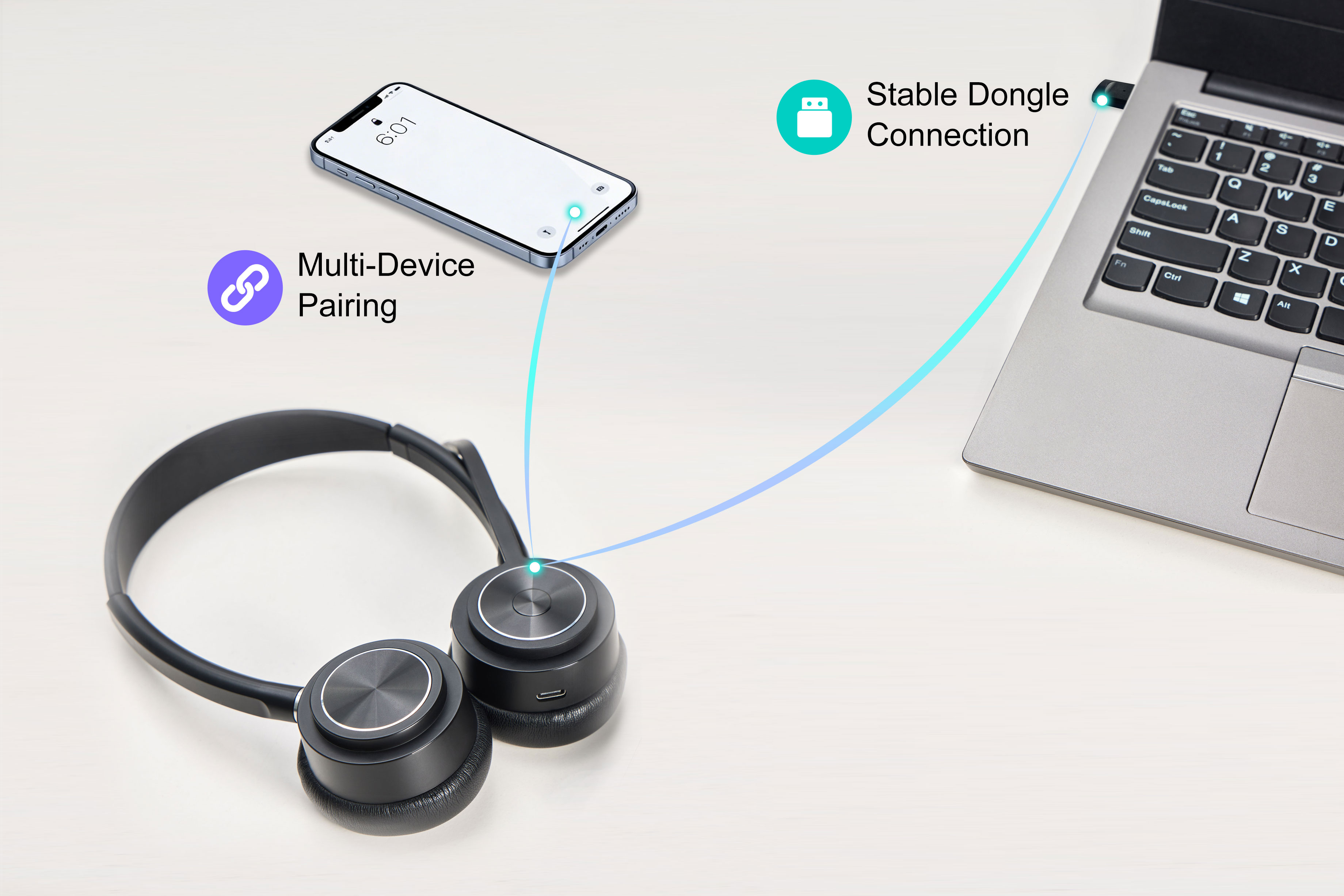
For Windows 10/11, click the Bluetooth icon in the taskbar’s system tray and toggle Bluetooth to On. If the icon is missing, go to Settings > Bluetooth & devices to enable Bluetooth, then wait for your headphones’model name to appear in the detected devices list. Select it, and Windows will automatically complete the pairing—you’ll see a “Connected” message once successful. For older Windows versions, the process is similar but may be under Control Panel > Devices and Printers.
On macOS, enable Bluetooth via the menu bar icon (a simple "B"-shaped icon) or access System Settings > Bluetooth. With your headphones in pairing mode, their name will be displayed in the device list. Click Connect next to it; macOS will establish the link in a few seconds. A handy bonus: macOS remembers paired devices, so they’ll reconnect automatically when both the Mac and headphones are on and within 30 feet.
Android users should open Settings > Connected devices > Pair new device. Toggle Bluetooth on, and the phone will scan for nearby devices. Tap your headphones’ name when it appears. In rare cases, the Android system may prompt you to enter a PIN. Some Android devices also let you customize audio settings (like codec preferences) right after pairing, for optimized sound quality.
For iOS (iPhone/iPad), head to Settings > Bluetooth and switch the toggle to green. Wait for your headphones to show up in the “Other Devices” section, then tap the name to pair. iOS offers a standout perk: paired headphones sync across all your Apple devices via iCloud, so you can start a podcast on your iPhone and seamlessly switch to your iPad without re-pairing.
A final tip: if pairing fails, restart both your device and headphones, and make sure no other Bluetooth device is connected to your headphones. By following these detailed steps, you can use your Bluetooth headphones smoothly on any operating system.
Ensure the headphones are fully charged and keep them within 3 feet (about 1 meter) of your device during pairing; low battery or excessive distance may disrupt the connection process. With these simple steps, you can enjoy your Bluetooth headphones on any operating system effortlessly.